Print Zones tab (Designs)
Attach print zones and link groups that should exist only when this design is selected.
Where to find it
Customizer → Designs → click a design → Print Zones tab.
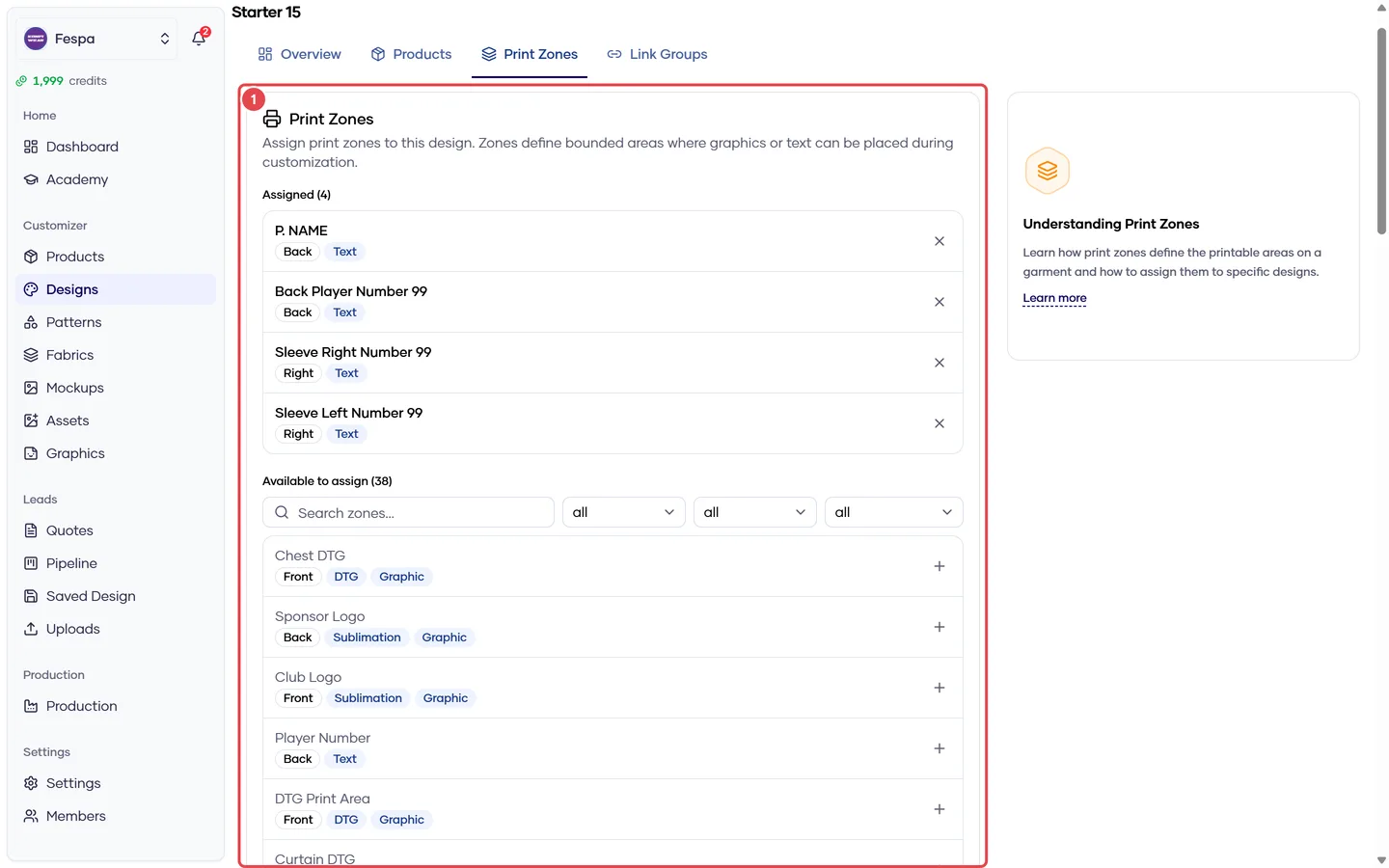
- Zones assigned to this design only
What it does
Most zones belong to a product or a category (see Product Print Zones). Use the design level when a zone only makes sense with a particular artwork — a sponsor box that exists in one design's layout, for example.
The storefront shows the union of product, category and design zones for the selected product + design; a zone assigned at several levels appears once.
Two cards:
- Zones — assign / unassign any zone from Graphics → Zones. Badges show view side, graphic/text and print method.
- Link groups — assign / unassign link groups (one input filling several positions, e.g. number front + back). See Link groups.
Steps
- In Available, click Assign on the zone or link group.
- To remove, click Unassign in the Assigned list. Changes save immediately.
Common questions
Should I put my "front chest logo" zone here or on the product? On the product (or its category) — then it works with every design. Only use the design level for design-specific placements.
The zone is assigned but doesn't appear in the storefront. Check the zone is Active in Graphics → Zones and that its view side exists on the model.