Upload settings
Account-wide rules for customer uploads: allowed file types, max size, freeform limits, rotation and drag.
Where to find it
Customizer → Graphics → Upload settings.
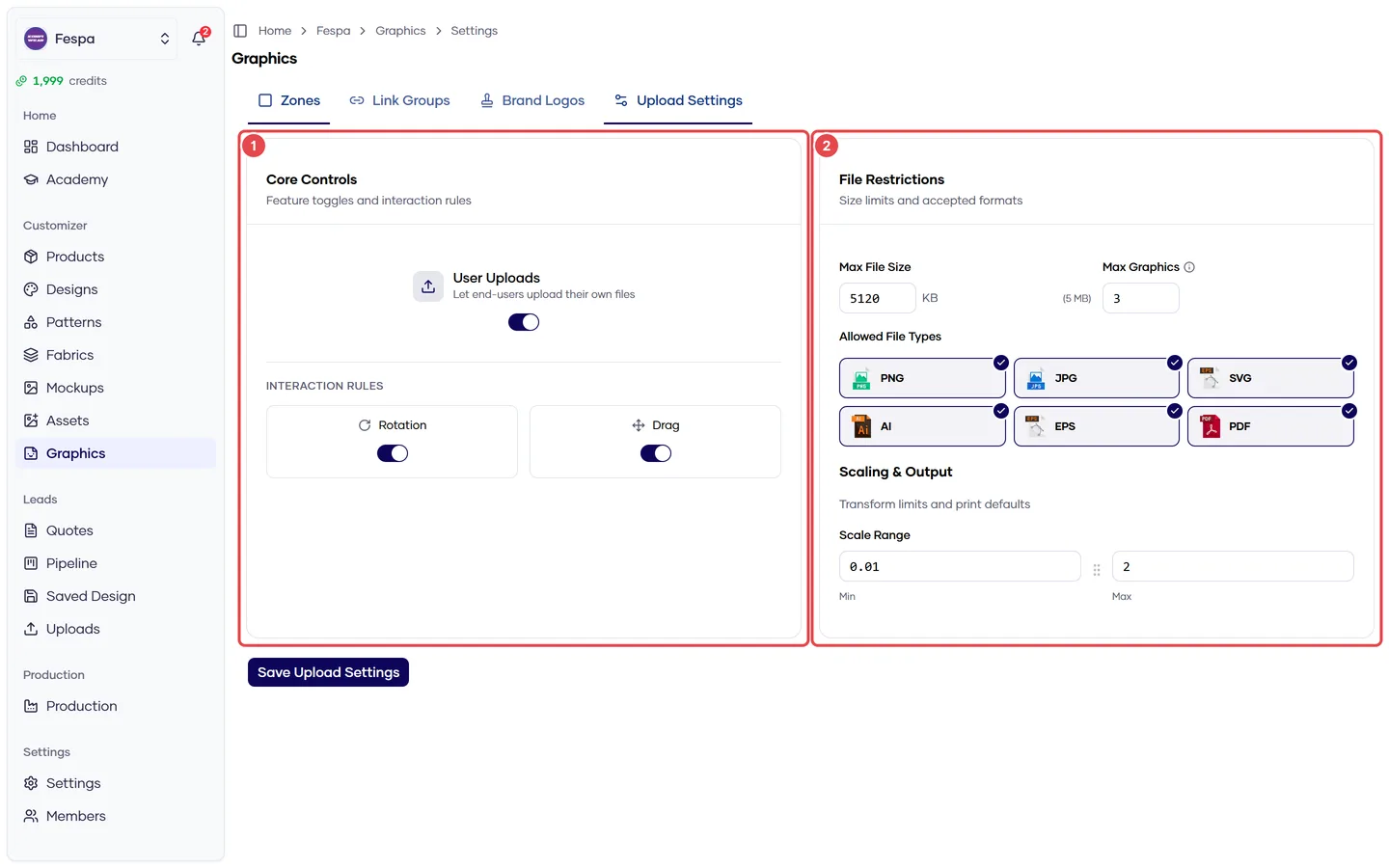
- Upload permissions, rotation and drag
- File constraints: max size, allowed types, freeform limit
What it does
One form per account controlling what customers can upload and how far they can move it. Per-zone constraints (min DPI, zone-specific formats) are set on each zone and apply on top of these.
Fields
| Section | Field | Default | Notes |
|---|---|---|---|
| Upload permissions | Allow user uploads | On | Off = customers can only use zone defaults and the graphic library |
| Allow rotation | On | ||
| Allow drag | On | Off = graphics stay where placed (zones still fit) | |
| File constraints | Max file size (KB) | 5120 | Applies to every upload; vector files are additionally capped at 30 MB |
| Allowed file types | PNG, JPG, SVG, WebP | Tick AI, EPS, PDF to accept vector files — they are converted to SVG on upload (first page of a PDF only) | |
| Max freeform graphics | unlimited | 0 = zone-only placement | |
| Placement & scale | Min / max scale | 0.1 / 3.0 | Zoom limits on uploaded graphics |
AI tools are elsewhere
Background removal, vectorize, upscale and AI graphic generation are enabled under Settings → Features, not here.
Common questions
A customer's AI file fails to upload. Enable the AI/EPS/PDF types here. Files over 30 MB are rejected; multi-page PDFs convert page one only.
Low-resolution logos keep coming in. Set Min DPI on your DTG zones so the customer sees a red warning, and tell them to upload SVG or PNG at 300 DPI for the printed size.
Where do I see what customers uploaded? Leads → Uploaded graphics lists every upload with the quote it belongs to. See Review and approve customer uploads.