Positions
Named anchor points on a garment used by link groups (name/number) and brand logos. How they differ from print zones.
Where to find it
Customizer → Assets → Positions.
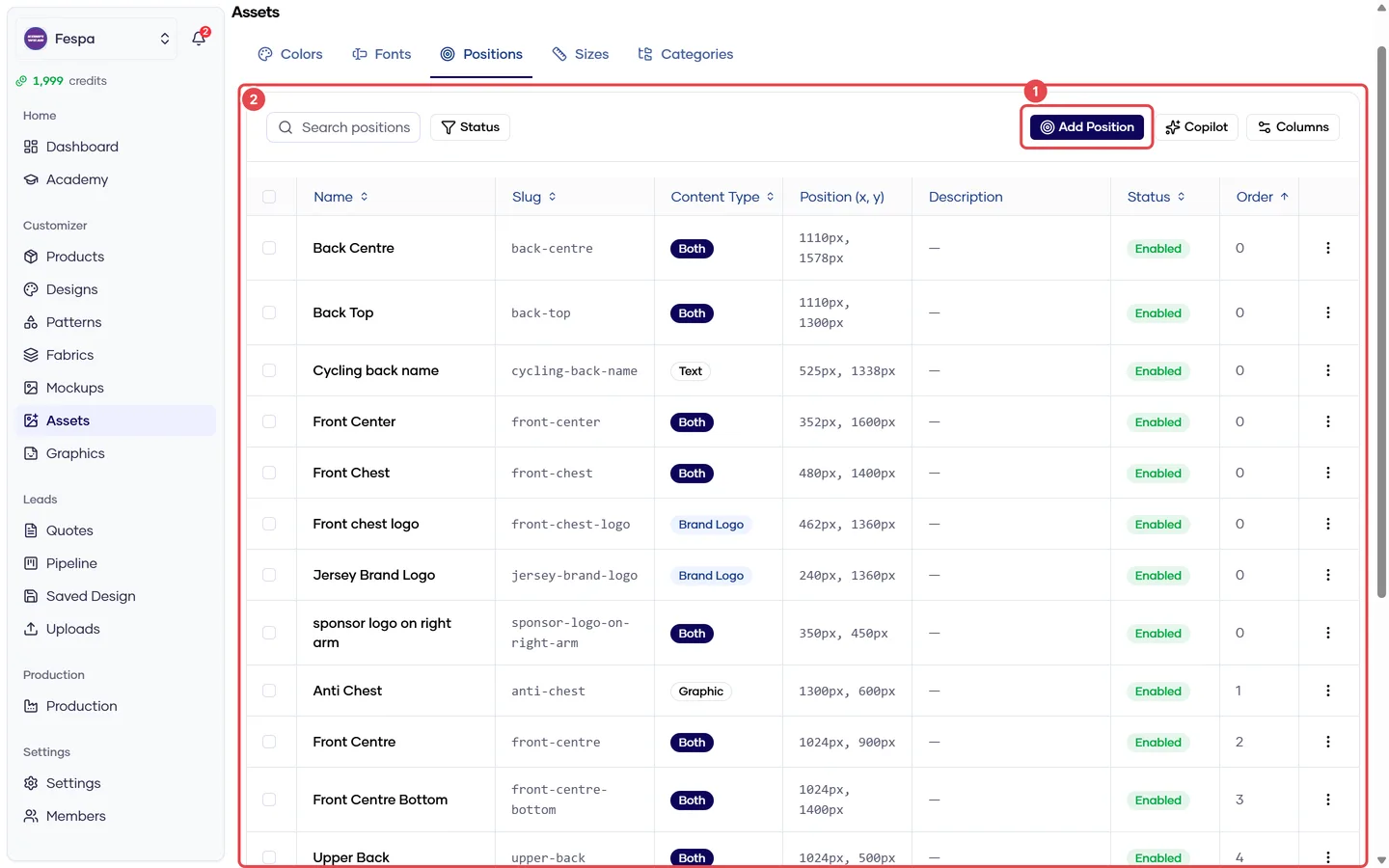
- Add position
- Positions with content type (text, both, brand logo)
Positions vs print zones
| Position | Print zone | |
|---|---|---|
| What it is | A named point ("Back center", "Left chest") | A bounded rectangle with size, print method and price |
| Used by | Link groups and brand logos | Customer uploads and text zones |
| Customer control | None — content is placed for them | They fill it |
| Where to manage | Assets → Positions | Graphics → Zones |
In most setups you use zones for customer artwork and positions only for linked name/number placements and your fixed brand logos.
Steps
- Click Add position.
- Enter a Name; the slug is generated.
- Pick the Content type:
- Text / Both — can be a member of a link group.
- Graphic — reserved for future graphic placements.
- Brand logo — can be assigned to a brand logo slot. A position is locked to one use: brand-logo positions cannot join link groups and vice versa.
- Save. Placement coordinates are set when you use the position: brand logos have Choose on product (click the 3D model); link groups use the zone geometry of their members.
Common questions
I can't add my position to a link group. Its content type is Graphic or Brand logo. Create a new position with type Text or Both — a position already in use cannot change type.
Can one position be in two link groups? No. One position belongs to at most one link group.