Overview tab
Product name, code, status, 3D model (GLB), thumbnail, ambient-occlusion map and shop integrations.
Where to find it
Customizer → Products → click a product → Overview tab (the default tab).
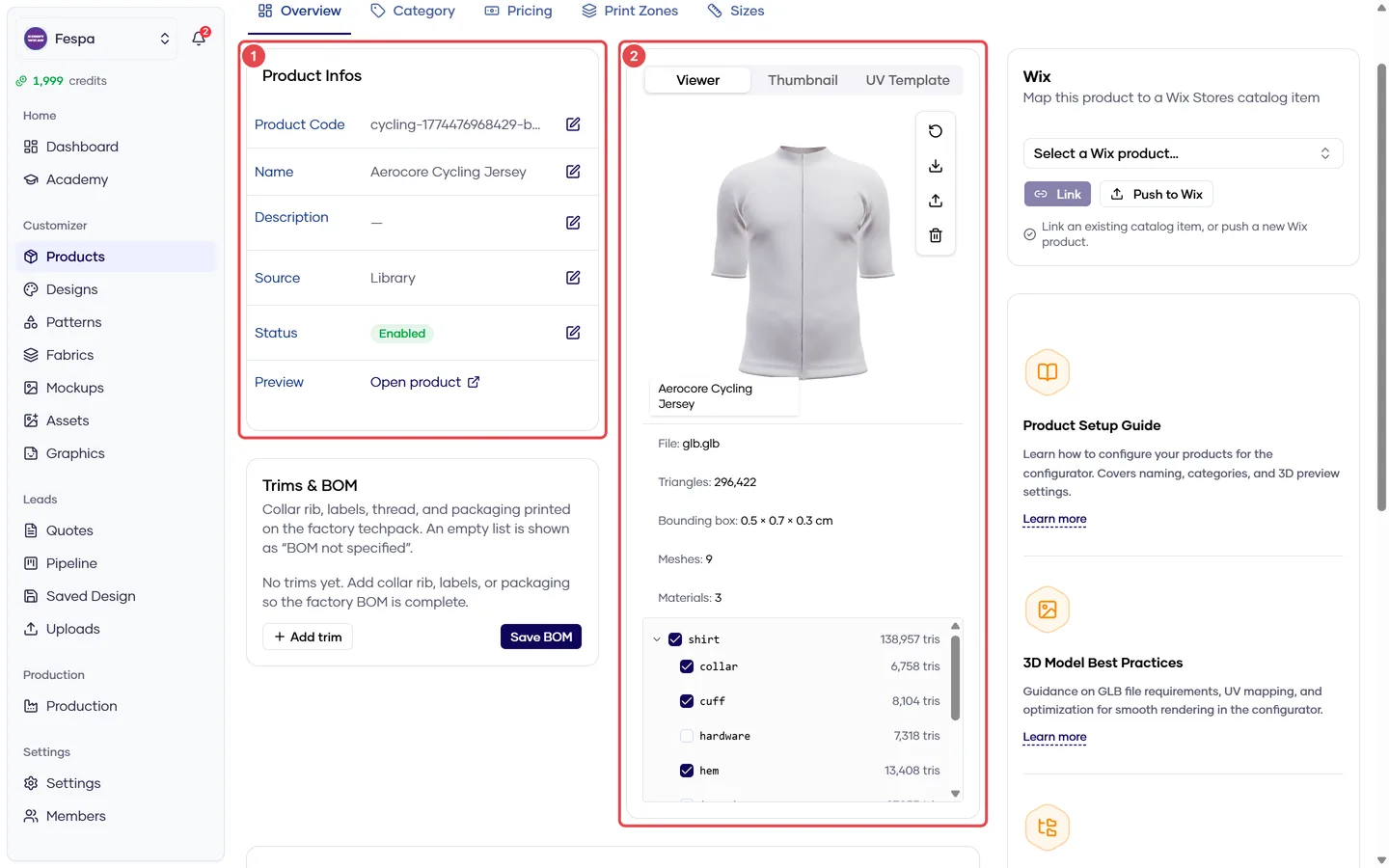
- Product Info (code, name, status)
- Assets & preview (3D viewer, thumbnail, UV, GLB / AO / pattern files)
What it does
The Overview tab holds the product's identity and the files the 3D canvas needs. It also shows the Shopify / WooCommerce mapping cards when one of those integrations is connected.
Cards on this tab
Product Info
Click the pencil icon to edit Product code, Name, Description and Enabled. Disabling a product hides it from the storefront immediately but keeps all its data and quotes.
Assets
Four upload slots. Files go straight from your browser to secure storage; large GLBs can take a minute.
| Slot | File | Required | Purpose |
|---|---|---|---|
| Thumbnail | PNG / JPG / WebP, square | Yes | Product card in the storefront and dashboard |
| GLB | .glb 3D model | Yes | The garment customers rotate and design on |
| AO | PNG ambient-occlusion texture | No | Adds realistic shading to the 3D render |
| Pattern | PNG/SVG base pattern image | No | Base texture when no design is selected |
Replacing a file overwrites the previous one. Removing a file only clears the slot; the storage object is kept.
Preview
Read-only 3D viewer of the current GLB. If no GLB is uploaded you see the thumbnail, then a placeholder.
Shopify / WooCommerce mapping
Visible only when the integration is connected in Settings → Integrations. Lets you push or link this product to a shop product and shows the sync status (synced, error, orphaned). See Settings → Integrations.
GLB requirements
The model must be a single .glb with the garment UV-mapped to one 2048 × 2048 texture sheet. Models with multiple materials render, but designs and print zones only apply to the first material. If your 3D vendor is unsure, send them the GLB of any Library product as a reference.
Common questions
The 3D model looks white / untextured in the storefront. Either no design is selected and no base Pattern image is set, or the GLB has no UV map. Upload a Pattern image as a fallback and check the model with your 3D supplier.
Can I upload an FBX or OBJ? No. Convert to GLB first (Blender: File → Export → glTF 2.0, format glb).
I replaced the GLB but still see the old one. Hard-refresh the page. The customizer caches models for a few minutes; the new file is served after the next cache refresh.