Where to find it
Customizer → Assets → Colors. The left sidebar has four pages: Colors, Palettes, Sort, Settings.
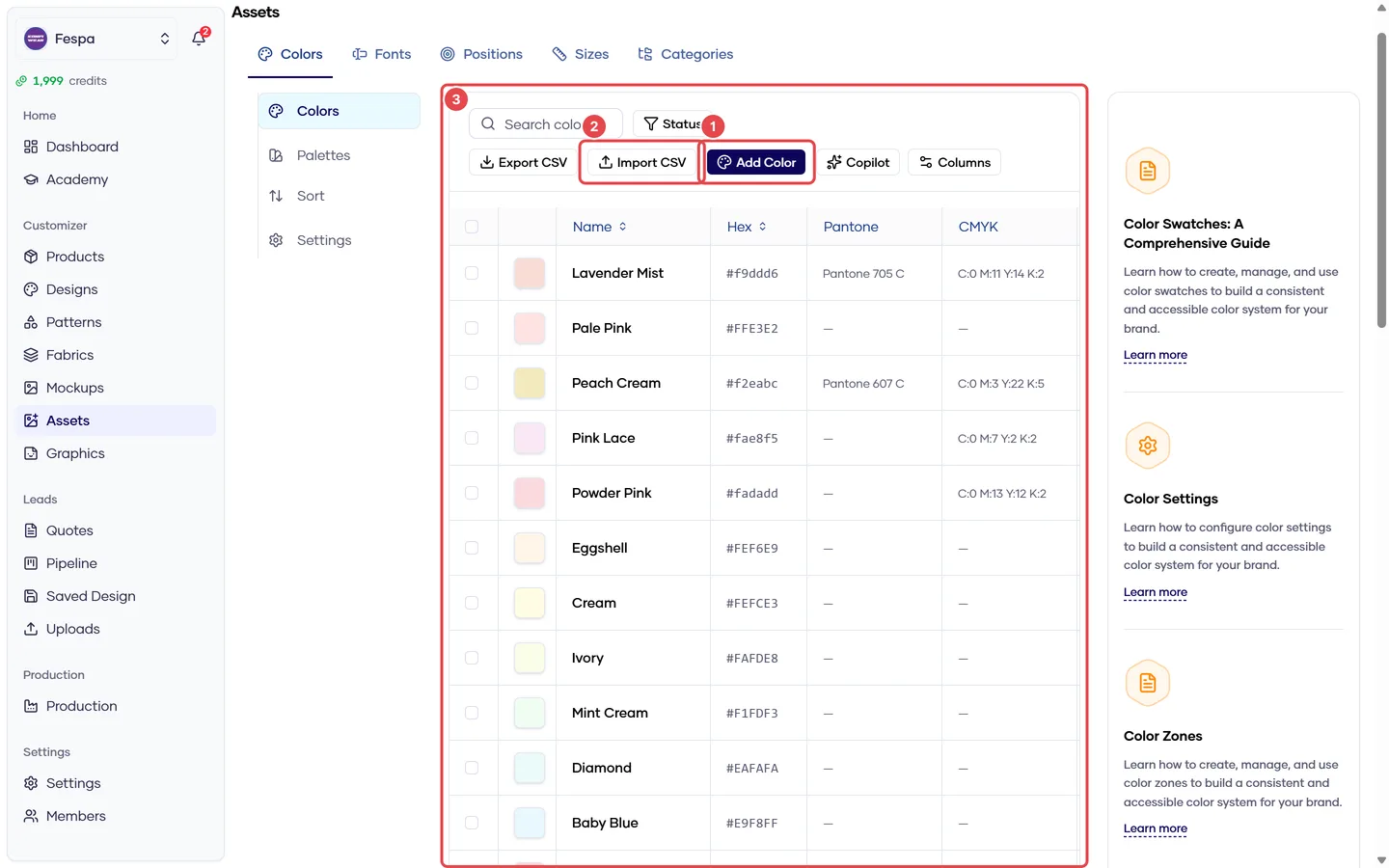
- Add color
- Import CSV
- Color list (hex, Pantone, CMYK, enabled)
Colors
The flat list customers choose from when recoloring a design, text or a tintable brand logo.
| Field | Meaning |
|---|---|
| Name | Shown on the swatch tooltip ("Navy") |
| Hex | Screen color (#0D0845) |
| Pantone | Optional; printed on the tech pack for production |
| CMYK | Optional; printed on the tech pack |
| Enabled | Disabled colors stay in old quotes but are hidden from new sessions |
Import or export the whole list as CSV from the toolbar.
Pantone matters more than hex
Hex is what the customer sees on screen; Pantone/CMYK is what the printer uses. Fill them in for every color you can actually produce — the tech pack lists them per panel.
Palettes
Named groups of colors ("Club colors 2026"). When Color palettes is enabled in Settings, customers can filter the swatch list by palette.
Sort
Drag swatches into the order they appear in the storefront. Click Save order.
Settings
| Toggle | Effect in the storefront |
|---|---|
| Show colors list | Show the swatch list at all |
| Gradient feature | Allow two-color gradients on a zone |
| Search colors | Show a search box above swatches |
| Color palettes | Show the palette filter |
Below the toggles, Color zones map the recolorable parts of your design SVGs to friendly labels:
| Field | Example |
|---|---|
| Key | body — must match the element id in your design SVGs |
| Aliases | torso, front — other ids that mean the same part |
| Label | "Body" — what the customer sees |
| Default color | Preselected color for that zone |
Common questions
Customer sees "Color 1, Color 2" instead of "Body, Sleeves". The SVG element ids don't match any color-zone key. Add the id as a key or alias here, or rename the ids in the SVG.
Restrict a color to one product. Not supported at the color level. Brand logos can restrict their tint colors; designs cannot.
Related
- Create a design — SVG rules
- Brand logos