Products tab (Designs)
Decide which products a design appears on with the all / include / exclude rule, and set the default design per product.
Where to find it
Customizer → Designs → click a design → Products tab.
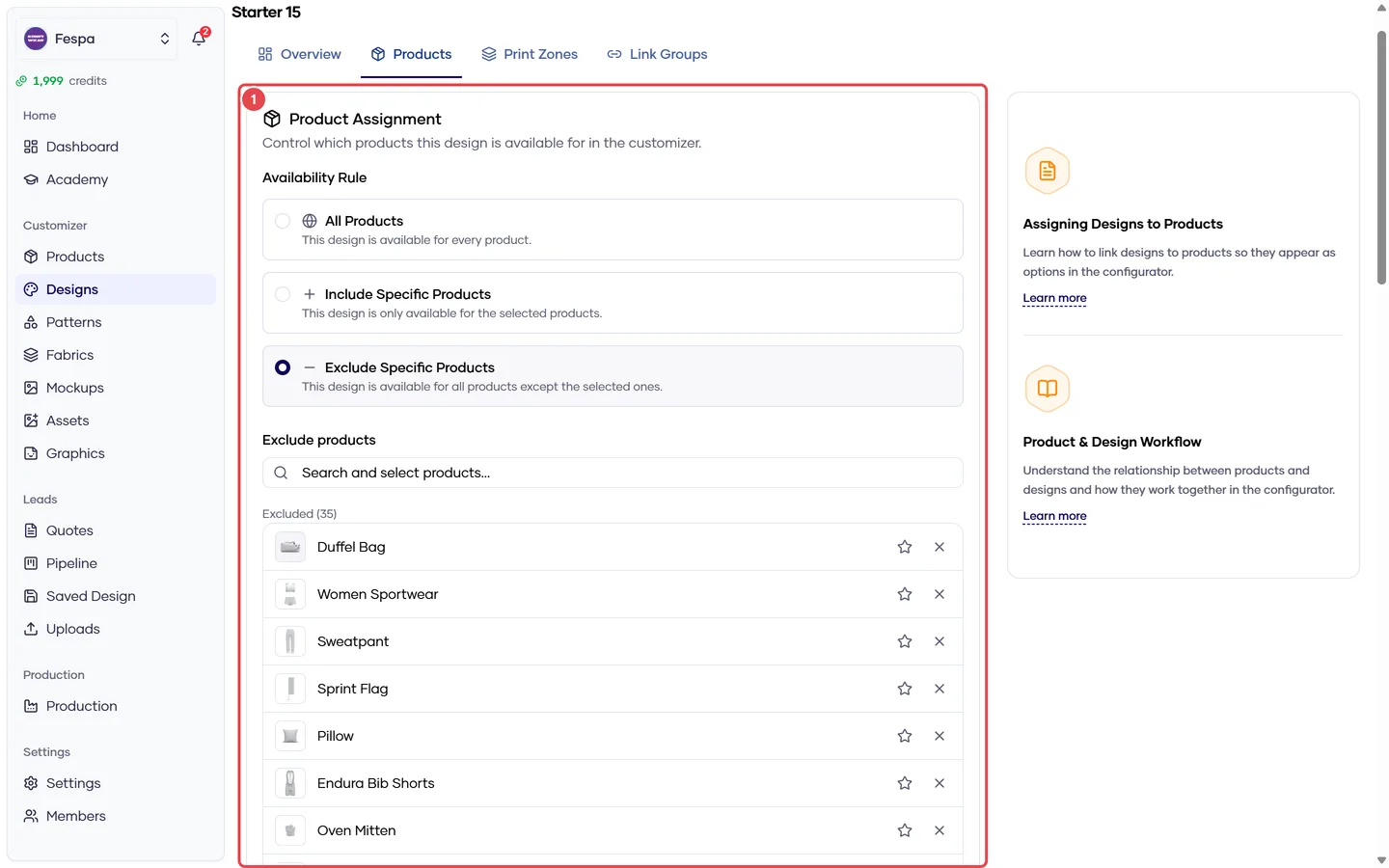
- Product rule (all / include / exclude) and product picker
What it does
Every design has a product rule:
| Rule | Meaning | Product list |
|---|---|---|
| All products (default) | Available on every product, now and in the future | Ignored |
| Include specific products | Only on the listed products | Products to include |
| Exclude specific products | On every product except the listed ones | Products to exclude |
The same rule system is used by Patterns and Fabrics.
Steps
- Pick the rule with the radio buttons at the top of the card.
- For Include / Exclude, click Add products. The picker is searchable and grouped by category; use Select all on a category group to add every product in it.
- Remove a product with the × on its chip.
- Set as default on a product chip makes this design the one pre-selected when a customer opens that product. One default per product; setting a new one replaces the previous.
Changes save immediately.
Switching back to All clears the list
Changing the rule to All products removes the product list. Switch to Include or Exclude again and you start from an empty list.
Common questions
The design doesn't appear on a product. Check the rule: Include without that product, or Exclude with it, hides the design. Then check the design is Active (Overview tab).
Which design loads first in the storefront? The product's default design. If none is set, the first active design in sort order that applies to the product. Set defaults explicitly — "first in sort order" changes when you reorder.
I have 100 products. Do I have to add them one by one? Use All products or Exclude (list the few that should not have it), or use Select all per category group in the picker.