Where to find it
Customizer → Fabrics → click a fabric → Overview → Textures and Render settings cards.
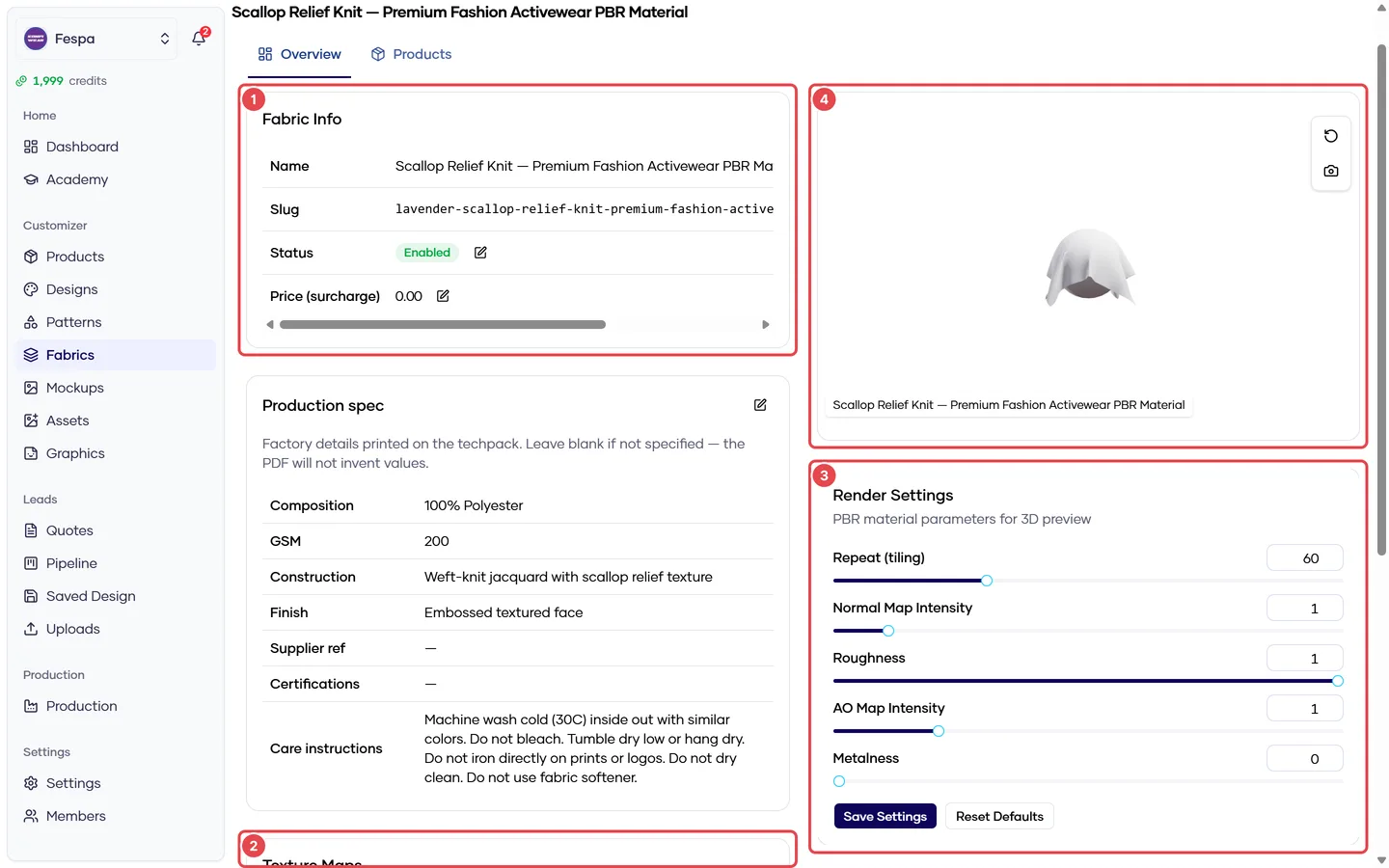
- Fabric info (name, slug, price, status, default)
- Texture maps (normal, AO, gloss, alpha, displacement)
- Render settings
- 3D preview with Save thumbnail
Texture maps
Upload PNG / JPG / WebP, seamless, 1024 × 1024 px or larger. Re-uploading a slot replaces the file; the trash icon removes it.
| Slot | What it does | Priority |
|---|---|---|
| Normal | Weave bumps and shading detail | Upload first — biggest visual impact |
| AO (ambient occlusion) | Darkens recesses between threads | Second |
| Gloss (roughness) | Shiny vs matte regions | For satin / technical fabrics |
| Alpha | Transparency (mesh holes) | Mesh fabrics only |
| Displacement | Height detail | Rarely needed; costs performance on mobile |
Render settings
Edit with the pencil on the Render settings card. The 3D preview updates when you save.
| Setting | Default | Effect | Typical range |
|---|---|---|---|
| Repeat | 10 | How many times the texture tiles across the garment. Higher = finer weave | 40–80 for jersey knits |
| Normal scale | 1 | Strength of the normal map | 0.5–2.5 |
| Roughness | 1 | 1 = fully matte, 0 = mirror | 0.5–0.8 for sportswear |
| AO intensity | 1 | Strength of the AO map | 0.6–1 |
| Metalness | 0 | Leave at 0 for textiles | 0 |
Seeing changes
After saving a texture or setting, the preview reloads with a fresh copy. If the storefront still shows the old texture, wait a minute and reload — fabric files are cached per version.
Common questions
The fabric looks stretched on sleeves. Lower Repeat slightly or check the product's GLB UV layout; the fabric follows the model's UVs.
The texture looks too shiny / plastic. Raise Roughness toward 1 and reduce Normal scale.
File size limits? Keep each map under 4 MB. Mobile devices load five maps per fabric; large files make the storefront slow.
Related
- Create a fabric
- Overview tab (Products) — GLB requirements