Graphic zones
Create and manage print and text zones account-wide: type, print method, size, artwork grade, defaults, constraints and price.
Where to find it
Customizer → Graphics → Zones (default tab). New zone and the pencil open a full-page form.
To create a zone by clicking on a specific product's 3D model, use the product's Print Zones tab instead — it is faster for placement.
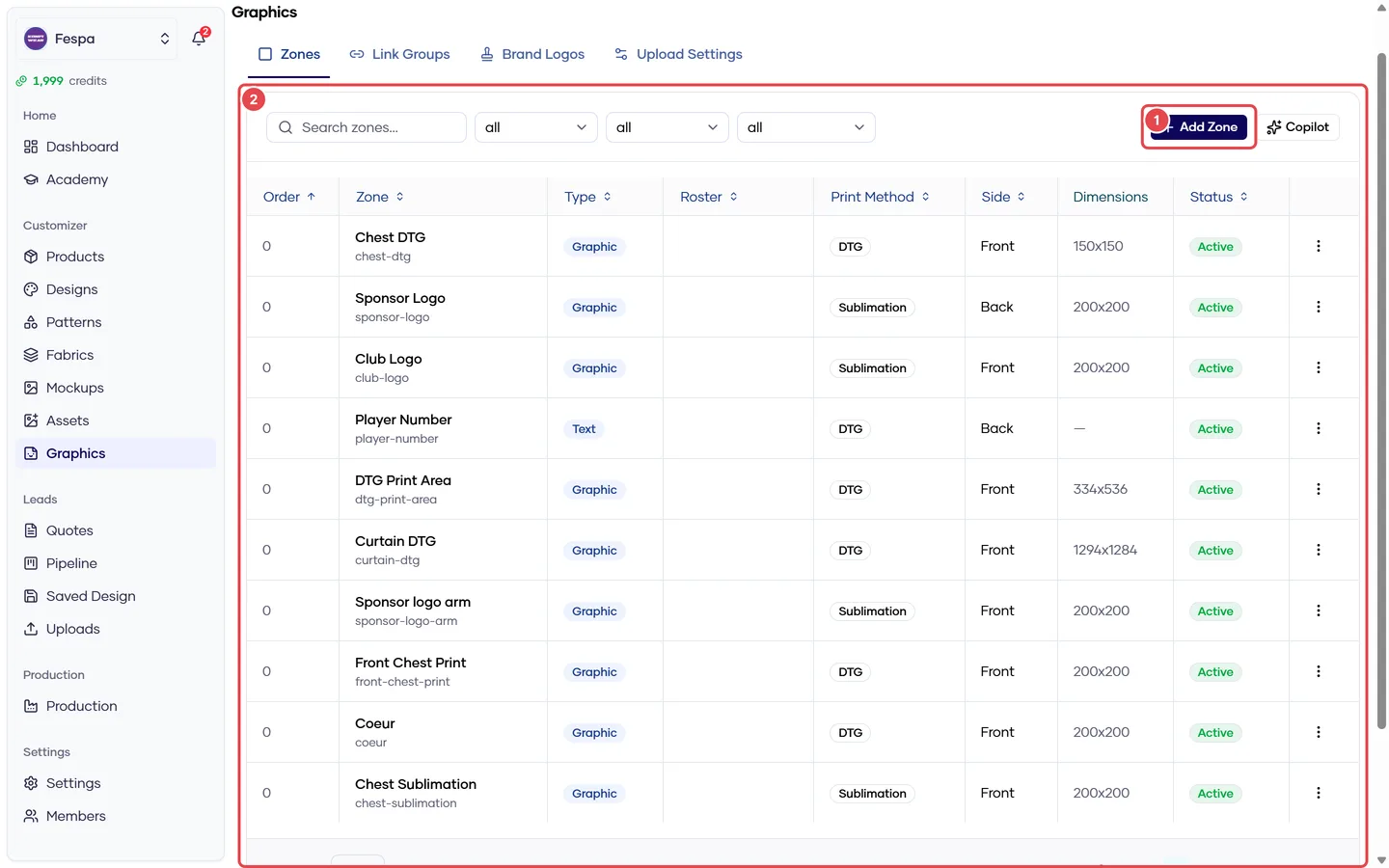
- New zone
- Zones table (type, print method, side, size, status)
What it does
A zone is a rectangle on the garment canvas. Graphic zones take an uploaded or library image; text zones take typed text. Zones are account-level and are assigned to products, categories or designs from those objects' Print Zones tabs — not from this form.
Form sections
Identity
Name (customer-facing), View side (front / back / left / right), Active.
Type
- Graphic → also choose Print method:
- DTG — dashed boundary visible, artwork auto-fitted and clipped to the rectangle, rotation locked. Use for print areas with hard limits.
- Sublimation — the rectangle is only a starting anchor; the customer can move, scale and rotate freely.
- Text → customers type; you set defaults and constraints below.
Placement
Origin X/Y, width, height, rotation in canvas pixels (2048 × 2048 sheet), or copy from a position.
Physical dimensions
Real print area in cm. Fill this in: it makes the DPI warning customers see accurate and gives production the true size. Without it, a 60 cm sheet width is assumed.
Artwork grade (graphic zones)
How the artwork size changes across garment sizes:
| Mode | Behaviour | Use for |
|---|---|---|
| Fixed cm | Same printed size on every size | Logos, sponsor marks (default for DTG) |
| Grade with garment | Scales with the panel | All-over or panel-filling art |
| Damped | In between, with a 0–1 blend | Large chest prints |
Per-size overrides are set per product on its Print Zones tab.
Graphic options
Allow uploads, library only, clip to bounds, lock position / scale / rotation, min DPI, allowed formats, max file size, bleed, and a default graphic shown until the customer replaces it.
Text options
Default text, default font, size and color; max length; roster role — mark the zone as Player name or Player number so team rosters fill it automatically. For a number printed front and back, use a link group instead of two zones.
Listing & pricing
Sort order in the storefront panel and a per-unit price charged when the zone has content.
Common questions
The customer's logo is cut off. DTG zones clip to the rectangle by design. Enlarge the zone, switch to sublimation, or turn off Clip to bounds.
Changing a zone changed other products. Zones are shared. Create a separate zone when products need different sizes.
Delete a zone that is in quotes. Allowed. Existing quotes keep their snapshot; the zone disappears from new sessions.
Roster names don't fill in. Set Roster role on the name/number zone (or its link group). Roster integration is being rolled out progressively; contact support if the roster tab is not visible.