Sizes tab
Set the size run of a product, upload a sewing-pattern SVG per size and add CAD measurements for the size chart and print files.
Where to find it
Customizer → Products → click a product → Sizes tab.
Reusable size runs (Adult S–3XL, Youth, EU numeric…) are defined once in Assets → Sizes:
Open SizesNote
The Sizes tab is only shown when Multi-size export is enabled in Settings → Features. Without it, products use a single pattern and the tab is hidden.
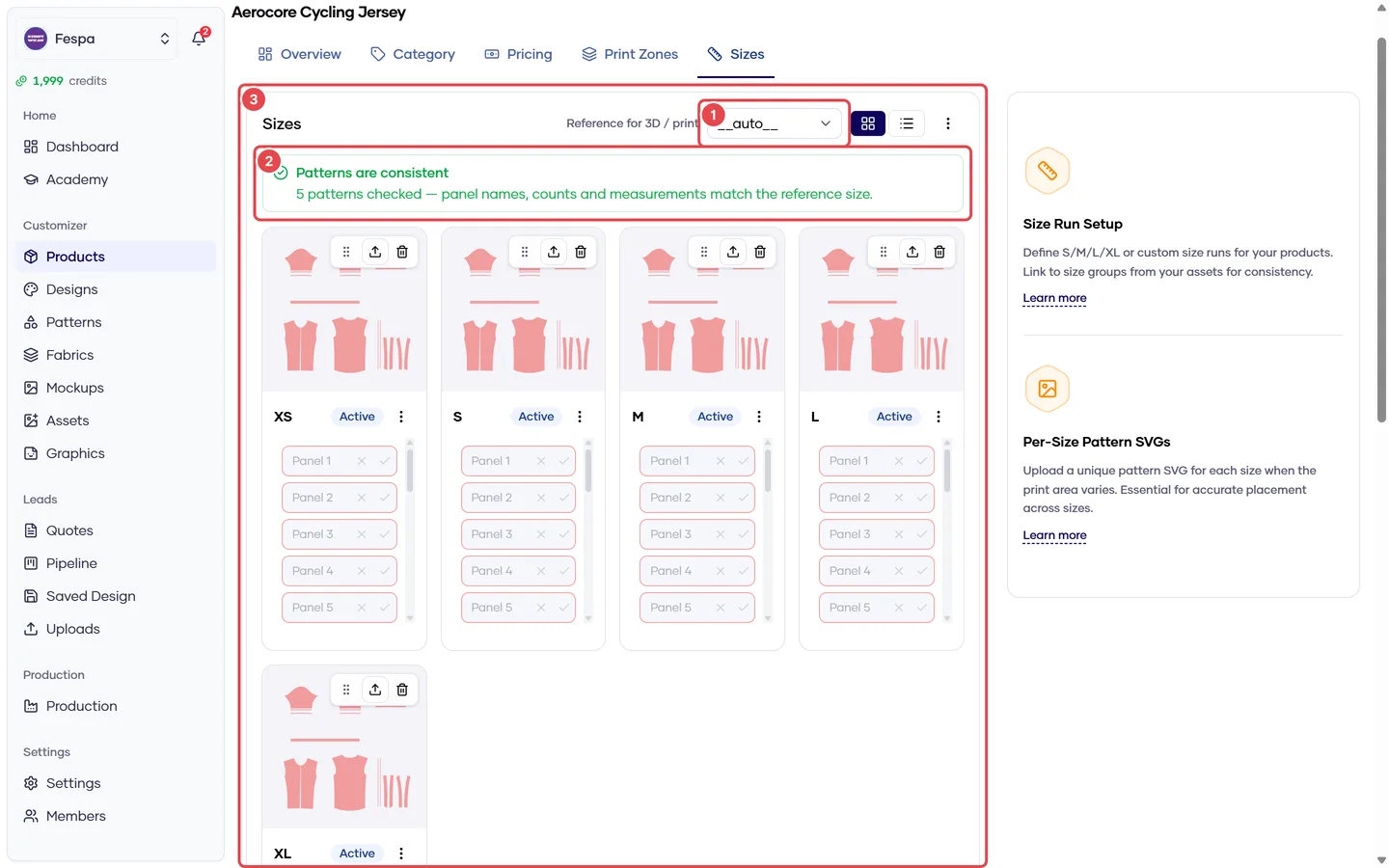
- Reference size
- Pattern pre-flight (panel consistency across sizes)
- Sizes with pattern SVG and measurements
What it does
Each product carries its own list of sizes. Per size you can attach:
- a pattern SVG — the 2D sewing pattern for that size, used to generate size-specific print files, and
- measurements — dimension lines drawn on the pattern (chest width, body length…) that feed the customer-facing size chart and give the print service the true garment scale.
Steps
Add sizes
- Click Add size and type the code (
S,M,2XL,38…). Codes must be unique within the product. - Reorder by drag or by the Sort control so the storefront lists them in the right order.
- Remove a size with the trash icon. Removing a size also deletes its pattern and measurements.
Upload a pattern per size
- On the size row, click Upload pattern and pick the
.svg. - The SVG must contain one closed path per panel, with panels named consistently across sizes (the pre-flight banner warns when sizes disagree on panel count or names).
- Replacing the SVG clears that size's measurements, because the points were drawn on the old file.
Measure a size
- Click Measure on a size that has a pattern.
- Click two points on a panel to draw a dimension, give it a key (
chest,length) and a label, and type the real value in cm or mm. - Drag the dimension line to move the label. Save.
- Copy to other sizes copies the dimension positions to sizes with compatible patterns; you then type each size's value.
Publish the size chart
Toggle Show size chart in customizer. Only key, label and the value are published — the pattern geometry never leaves the dashboard.
Common questions
Which measurement does the print service use for scale? width first, then height, then the first measurement on the panel. Make sure at least one of those exists on every size, then regenerate print files.
My customer picked a size that has no pattern. The quote is accepted, but Production cannot export that size until a pattern is uploaded. The product list shows a muted scissors icon on sizes without patterns.
Sizes tab is missing. Enable Multi-size export in Settings → Features.