Where to find it
Customizer → Products → click a product → Category tab.
Categories themselves are created in Customizer → Assets → Categories:
Open Categories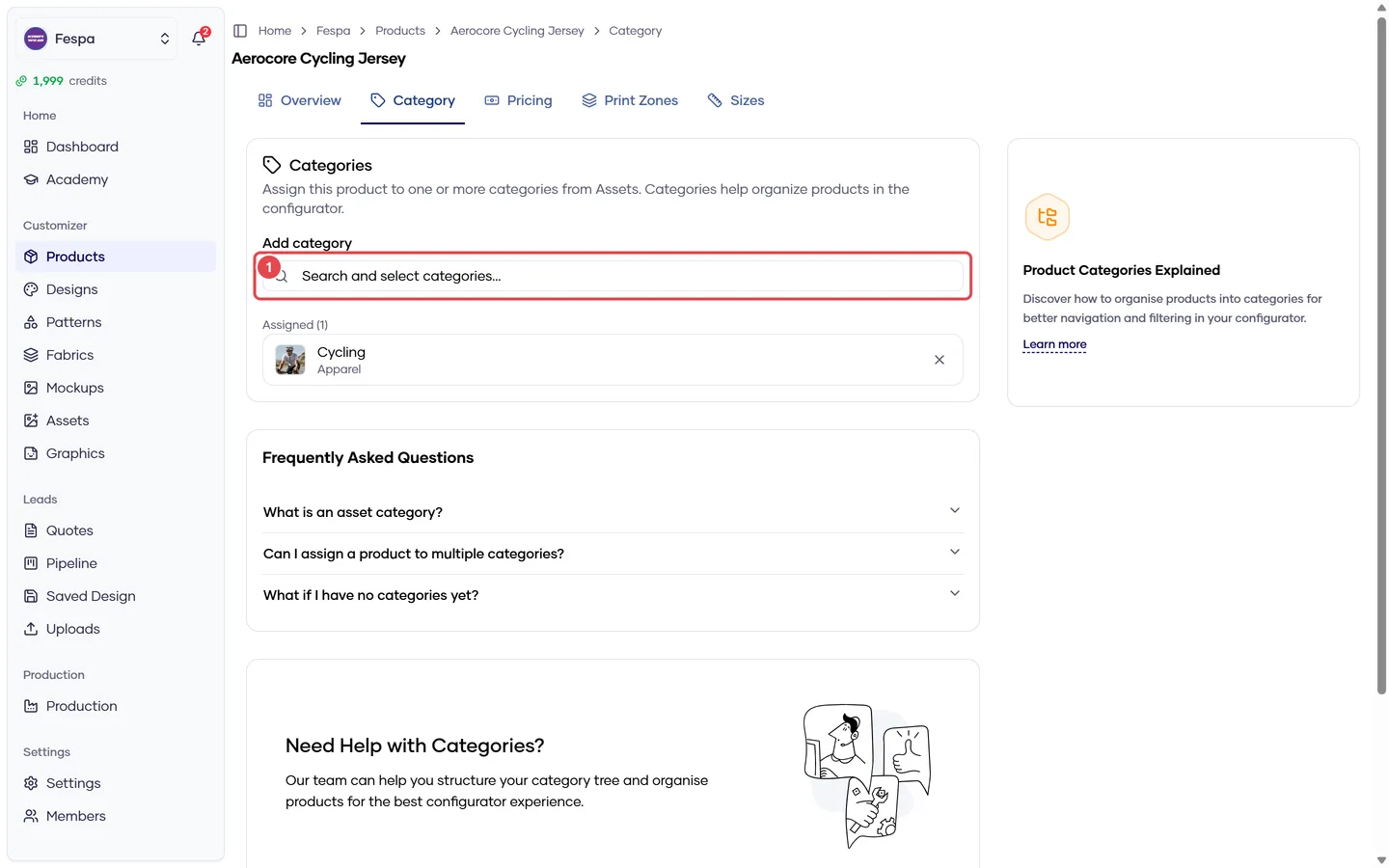
- Category picker — tick every category the product belongs to
What it does
Categories are the navigation tree your customers walk through in the storefront (for example Sport → Football → Jerseys). A product can belong to several categories at once; it appears under each of them.
Categories also carry inherited print zones: a zone assigned to a category applies to every product in that category, so you can define "Front chest logo" once instead of on each jersey.
Steps
- Open the product and click the Category tab.
- The picker shows your category tree. Tick every category the product should appear in. Nested categories are shown with their parent path.
- Changes save immediately — there is no Save button. A toast confirms each assignment.
- To remove the product from a category, untick it.
Tip
If the category you need does not exist yet, create it first in Assets → Categories, then come back. The picker refreshes when you reopen the tab.
How categories affect the storefront
| Situation | Result |
|---|---|
| Product in no category | Not reachable through category navigation. It can still be opened by direct link (/c/your-account/product-code). |
| Product in a disabled category | Hidden with the category. Hiding a parent hides all children. |
| Product in several categories | Listed under each one |
| Category has print zones | Those zones appear on the product's Print Zones tab as Inherited and are active in the storefront |
Common questions
I assigned the category but the product still doesn't appear under it. Check that the category and all its parents are enabled (eye icon in Assets → Categories), and that the product itself is enabled with a GLB uploaded.
Can I set a different price per category? No. Pricing is per product (Pricing tab). Use separate products if two categories need different prices.
What is the "Category" column in the products list? It shows the assigned categories. Use the category filter in the toolbar to list all products in one category.