Zoho CRM Integration with Konfiwear
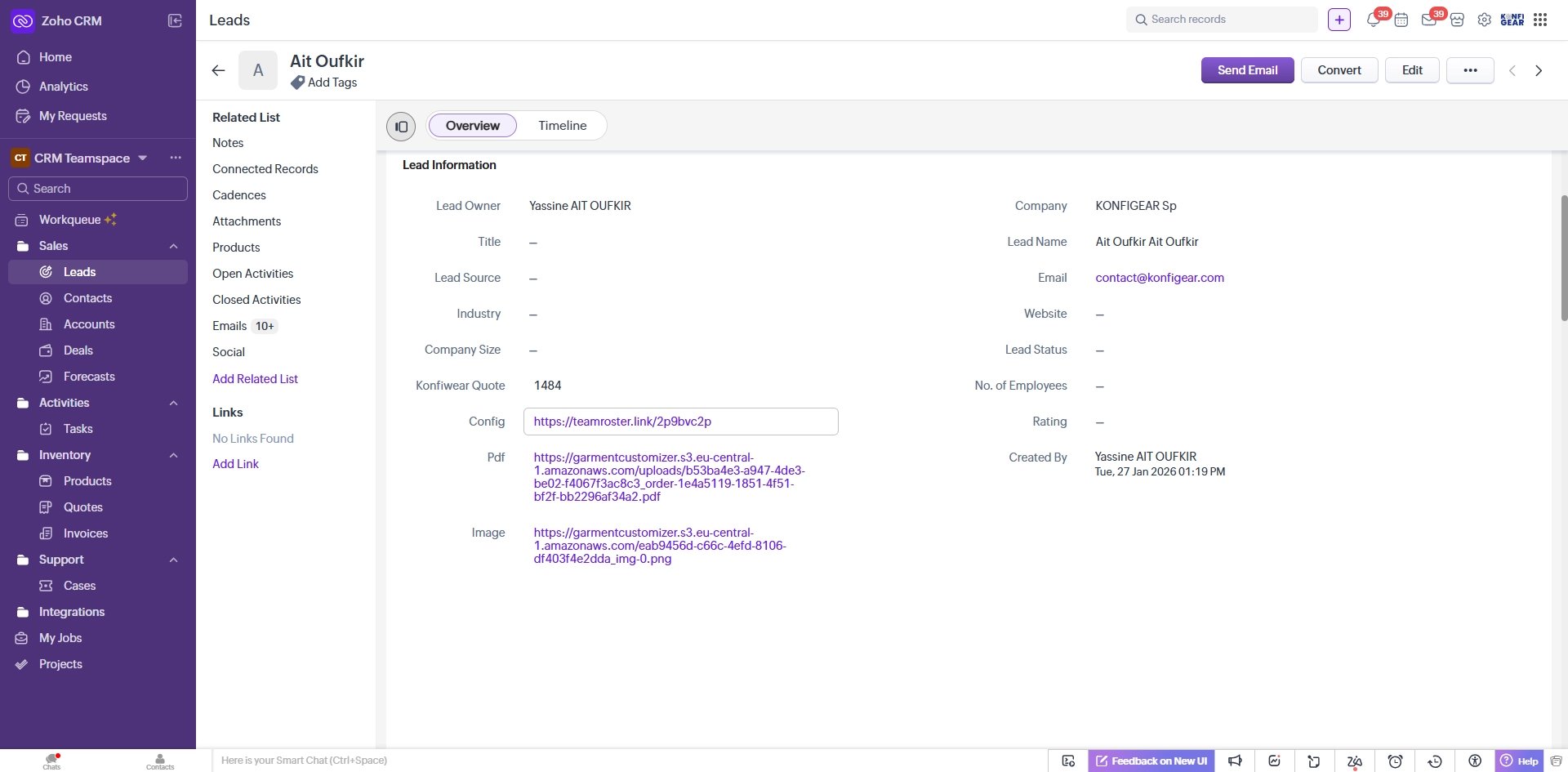
The Zoho CRM integration automatically creates a new Lead in your Zoho CRM whenever a customer submits a quote request through your Konfiwear customizer. This allows you to seamlessly capture and manage potential customers directly in your CRM.
Prerequisites
Before setting up the integration, ensure you have:
- A Zoho CRM account with API access
- A Konfiwear Pro or Enterprise plan (required for CRM integrations)
- Admin access to your Konfiwear customizer settings
Step 1: Create Custom Fields in Zoho CRM
Before enabling the integration, you need to create custom fields in your Zoho CRM Leads module to store Konfiwear-specific data.
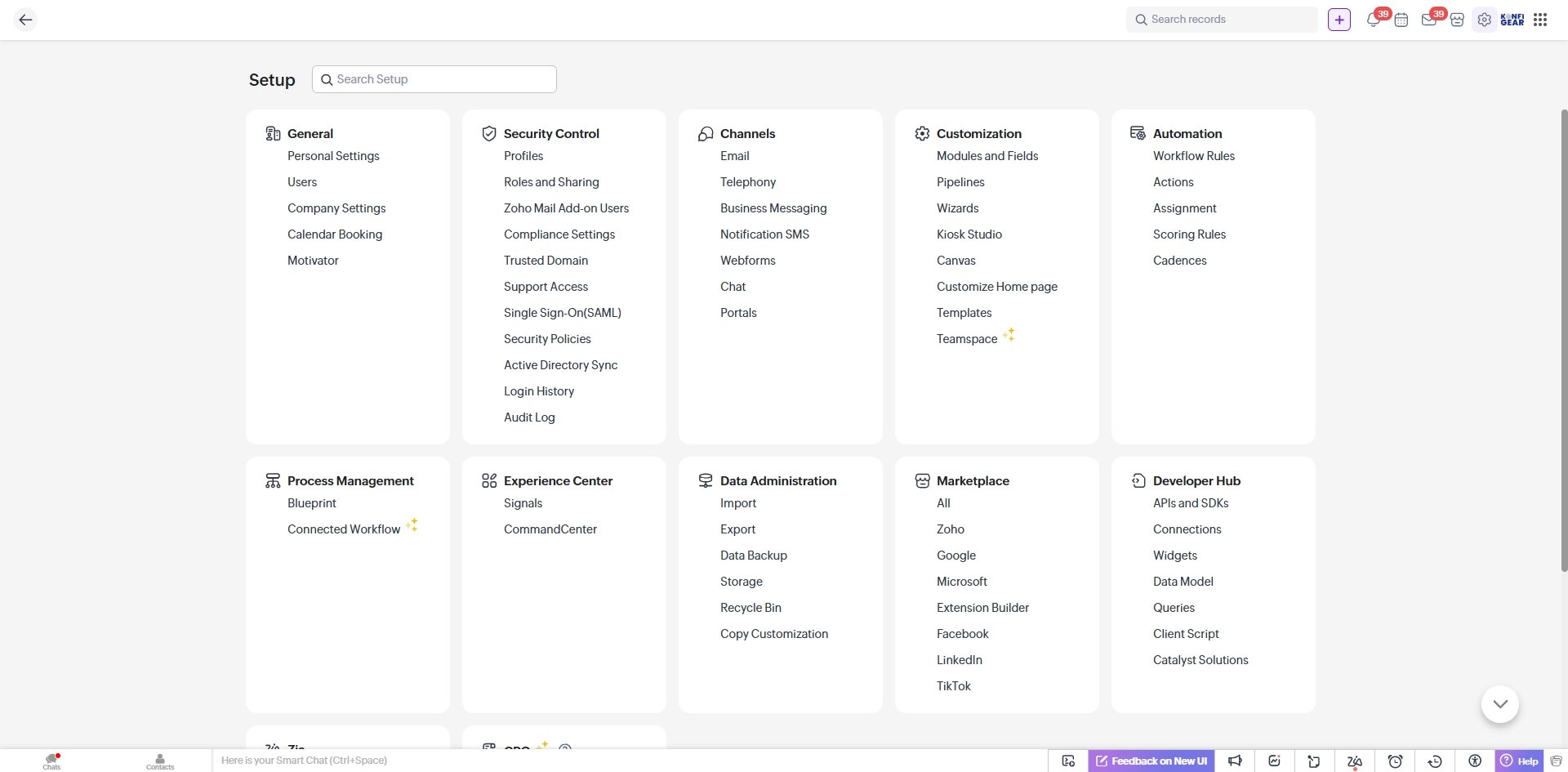
- Log in to your Zoho CRM account
- Click the Settings icon (gear icon) in the top-right corner
- Navigate to Customization → Modules and Fields
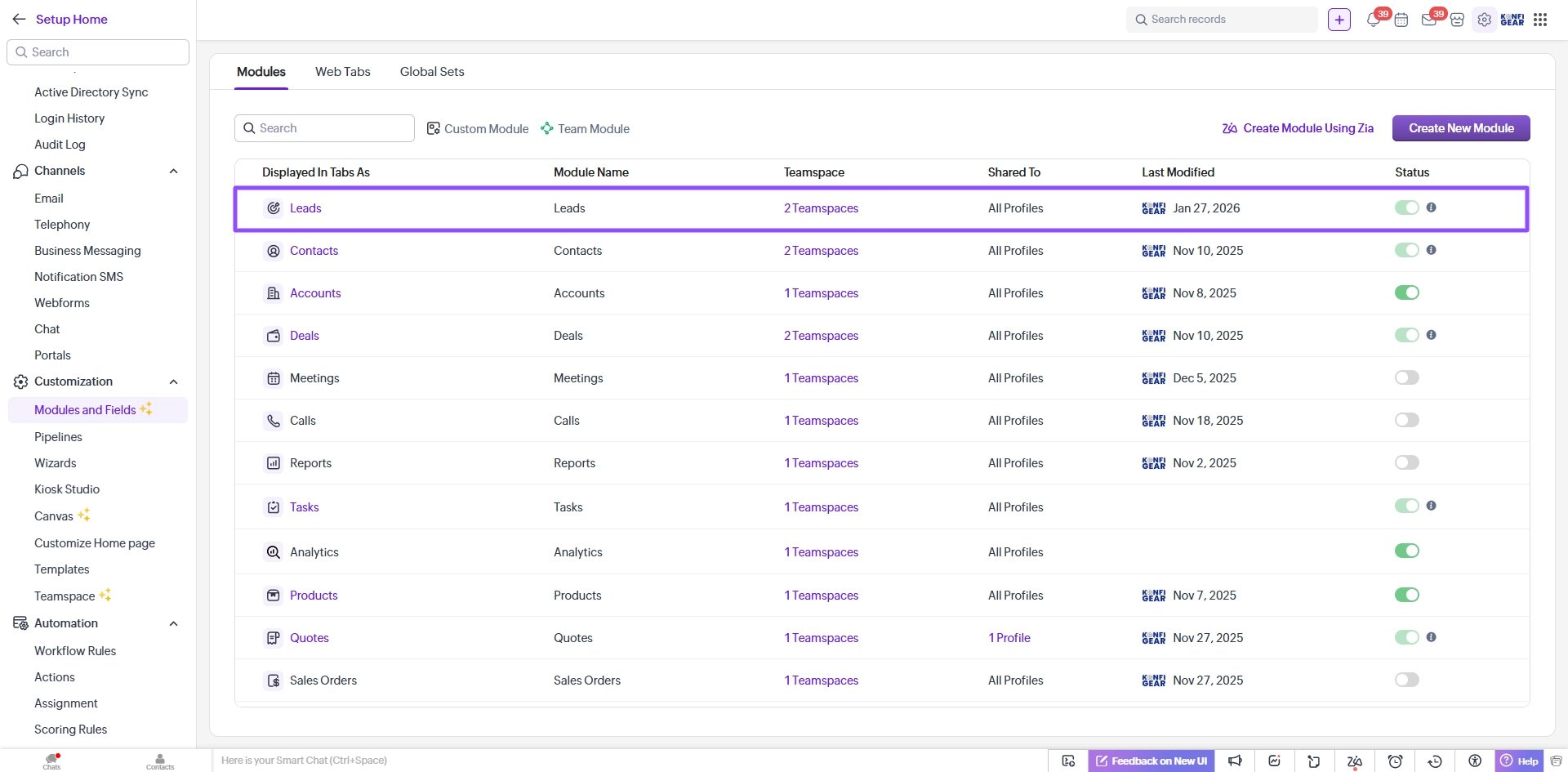
- Select the Leads module
- Click Layouts → Select your layout → Click Edit Layout
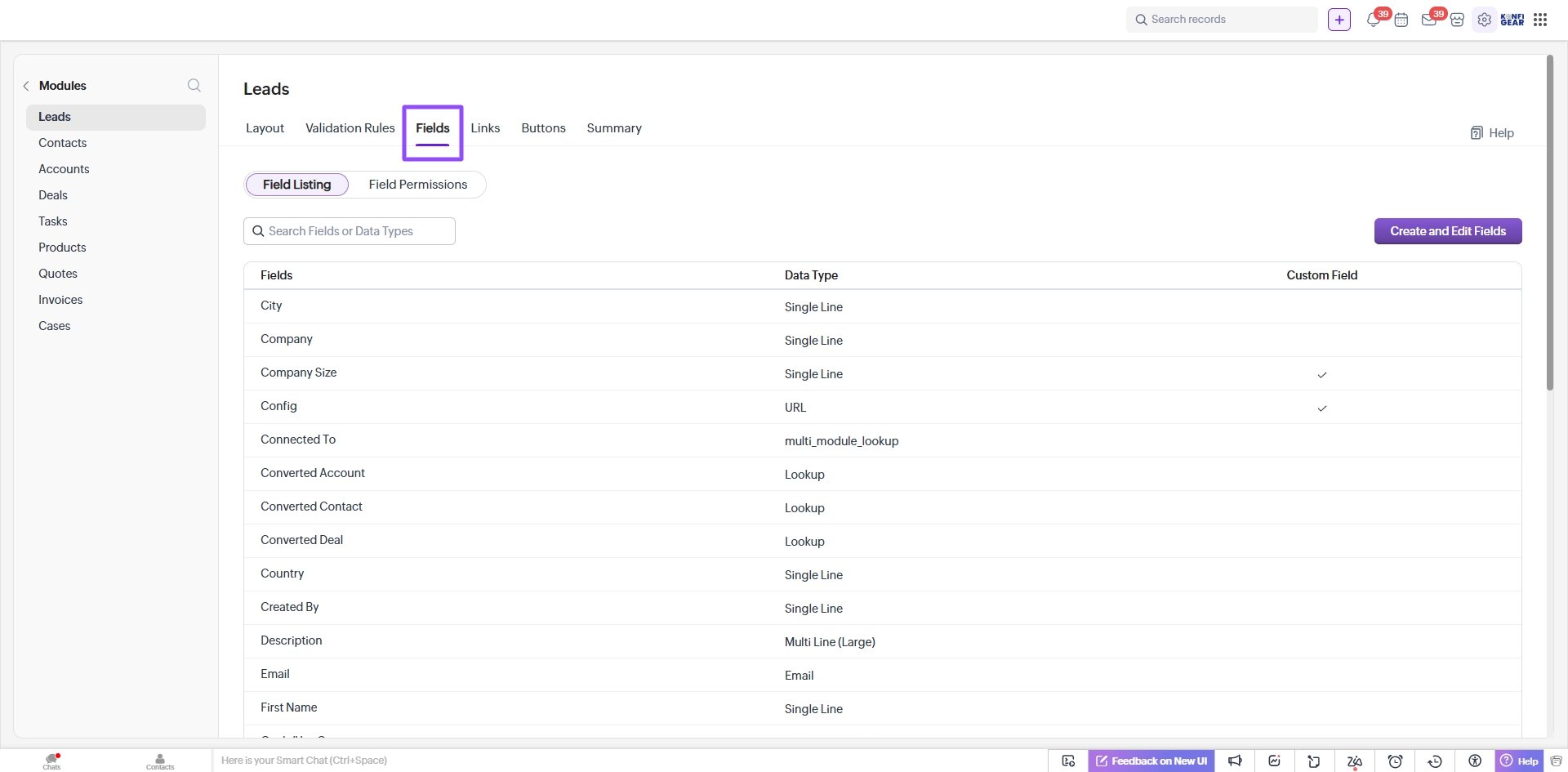
- Add the following custom fields by dragging them from the left panel:
| Field Name | API Name | Field Type |
|---|
| Konfiwear Quote | Konfiwear_Quote | Single Line |
| Config | Config | URL |
| Pdf | Pdf | URL |
| Image | Image | URL |
- Click Save Layout to save your changes
Step 2: Generate Zoho API Credentials
To connect Konfiwear with Zoho CRM, you'll need to generate API credentials.
Create a Zoho API Client:
- Go to Zoho API Console
- Click Add Client → Select Server-based Applications
- Fill in the required details:
- Client Name: Konfiwear Integration
- Homepage URL: Your website URL
- Authorized Redirect URI:
https://your-domain.com/oauth/callback
- Click Create
- Note down your Client ID and Client Secret
Generate a Refresh Token:
- In the API Console, go to your client → Generate Code tab
- Select the following scope:
ZohoCRM.modules.leads.ALL
- Select your Data Center (based on your Zoho account region)
- Click Create to generate an authorization code
- Use the authorization code to obtain a Refresh Token via Zoho's OAuth flow
📌 Important: Keep your credentials secure. The refresh token does not expire but can be revoked.
Now, enter your Zoho API credentials in Konfiwear to complete the integration.
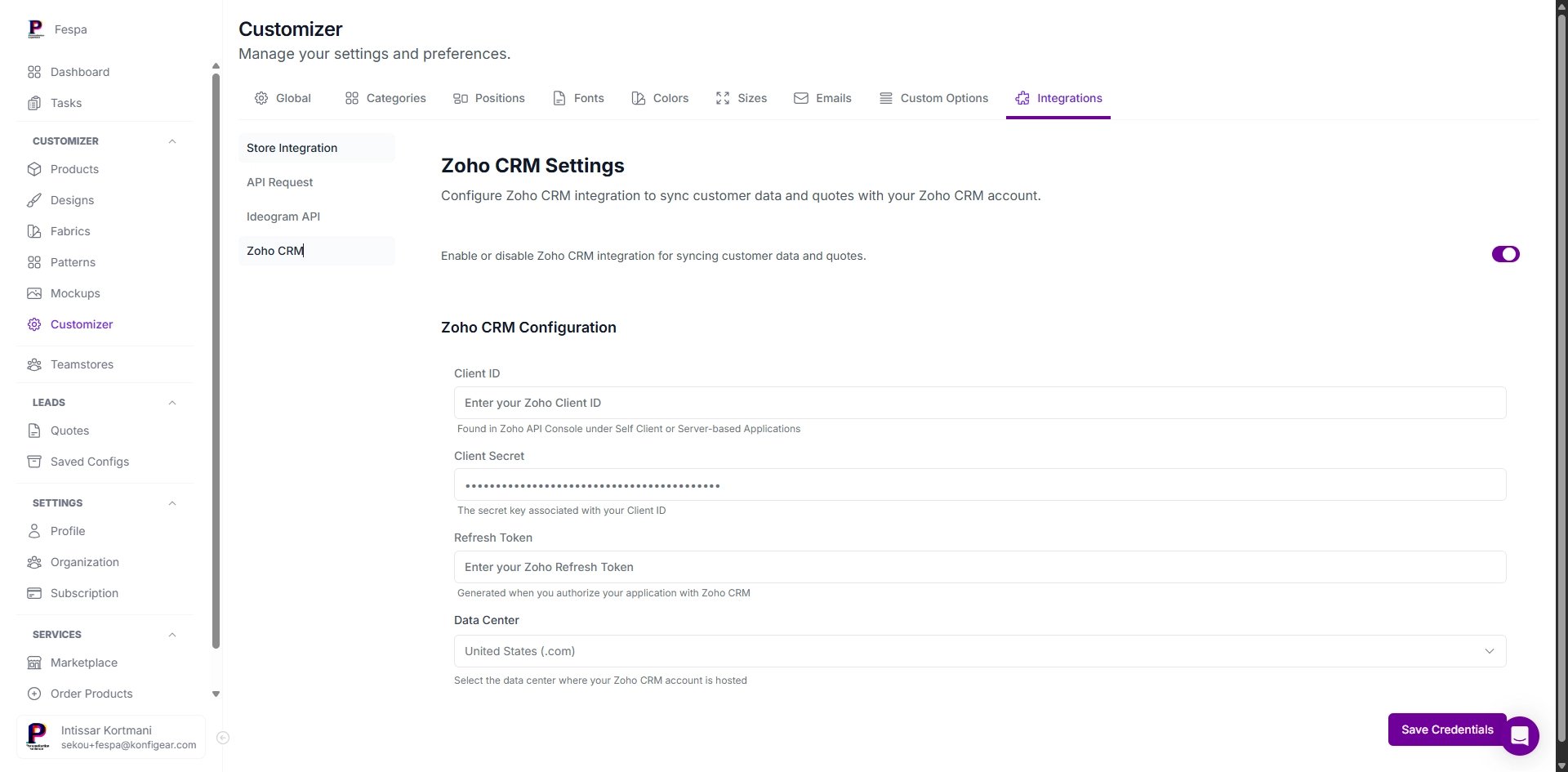
- Go to your Konfiwear Dashboard
- Navigate to Customizer Settings → Integrations → Zoho CRM
- Enable the Zoho CRM Integration toggle
- Enter your credentials:
- Client ID - From Zoho API Console
- Client Secret - From Zoho API Console
- Refresh Token - Generated in the previous step
- Data Center - Select your Zoho account region
- Click Save Credentials
Step 4: Test the Integration
Verify that the integration is working correctly by submitting a test quote.
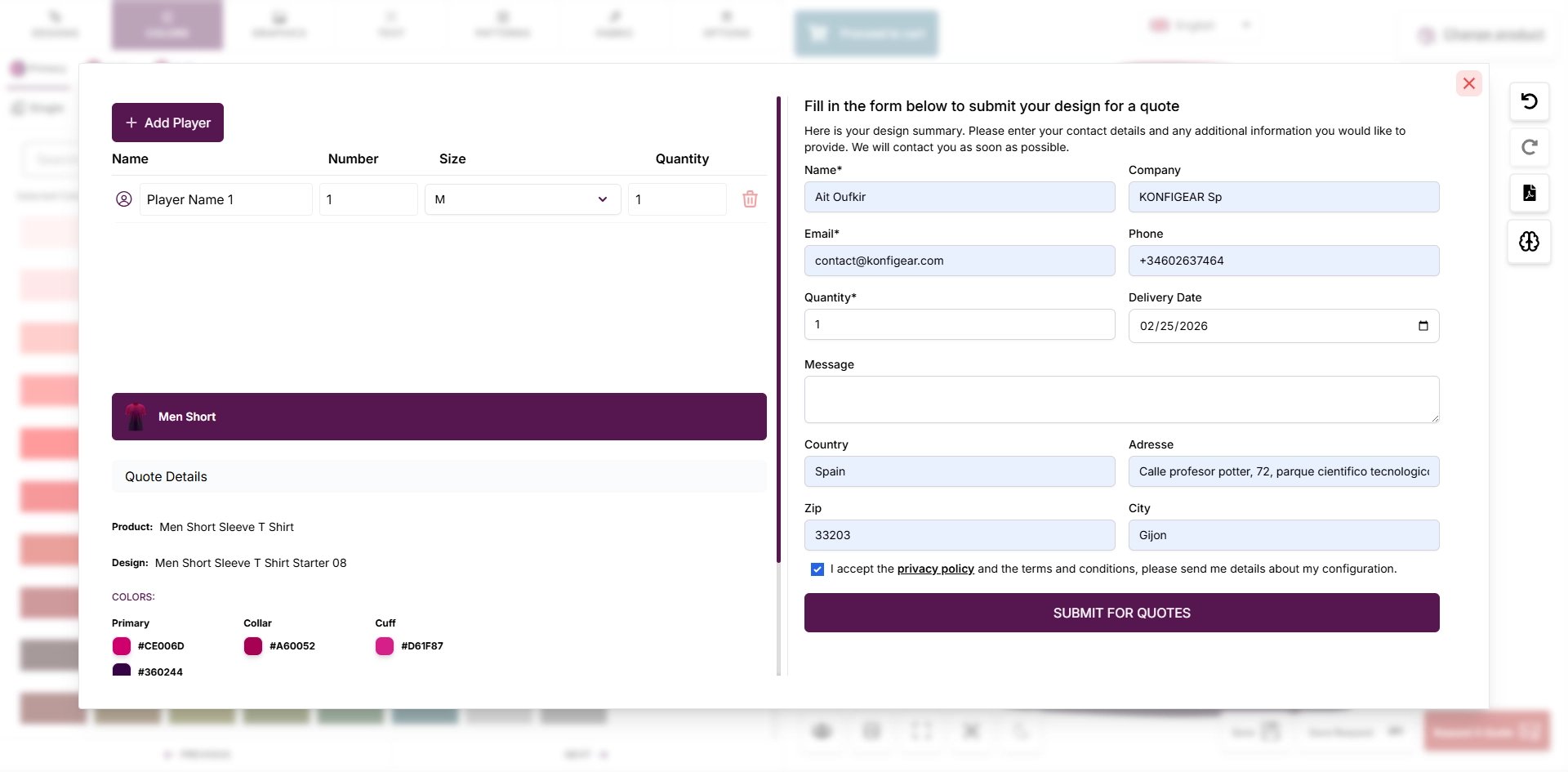
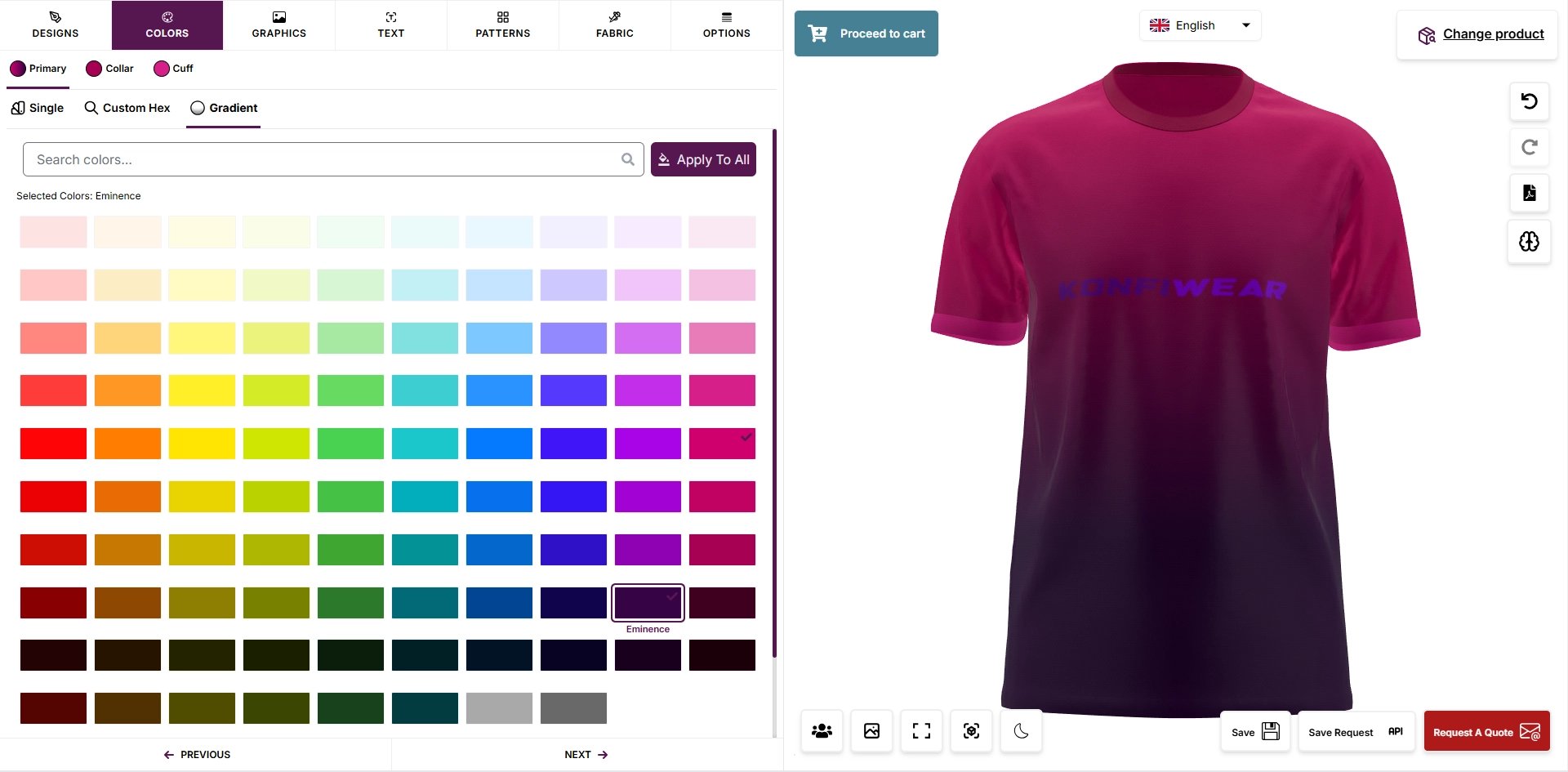
- Open your Konfiwear customizer
- Configure a product and submit a quote request
- Fill in the customer details (name, email, etc.)
- Submit the quote
- Go to your Zoho CRM → Leads module
- Verify the new lead appears with all the correct information
Data Sent to Zoho CRM
When a customer submits a quote, the following information is automatically sent to Zoho CRM:
| Customer Information | Zoho CRM Field |
|---|
| First Name | First Name |
| Last Name | Last Name |
| Email Address | Email |
| Phone Number | Phone |
| Company Name | Company |
| Message/Comments | Description |
| Country | Country |
| Quote ID | Konfiwear_Quote (custom) |
| Configuration Link | Config (custom) |
| Production PDF | Pdf (custom) |
| Preview Image | Image (custom) |
Data Center Reference
Select the data center based on your Zoho CRM account region:
| Region | Data Center Code |
|---|
| United States | us |
| Europe | eu |
| India | in |
| Australia | au |
| Japan | jp |
| China | cn |
| Canada | ca |
📌 Tip: You can find your data center by checking your Zoho CRM URL. For example, crm.zoho.com is US, crm.zoho.eu is Europe.
Troubleshooting
Leads not appearing in Zoho CRM:
- Verify the Zoho CRM feature is enabled in Konfiwear
- Check that all API credentials are entered correctly
- Ensure the refresh token has not been revoked
- Verify your Konfiwear plan supports CRM integrations (Pro or Enterprise)
Custom fields showing empty:
- Verify the API names match exactly (case-sensitive)
- Ensure custom fields are added to your active Leads layout
- Check that the fields are not marked as read-only
Authentication errors:
- Regenerate your refresh token
- Verify the Client ID and Client Secret are correct
- Ensure you selected the correct data center
Need Help?
If you encounter any issues with the Zoho CRM integration, contact your Konfiwear support representative for assistance.

